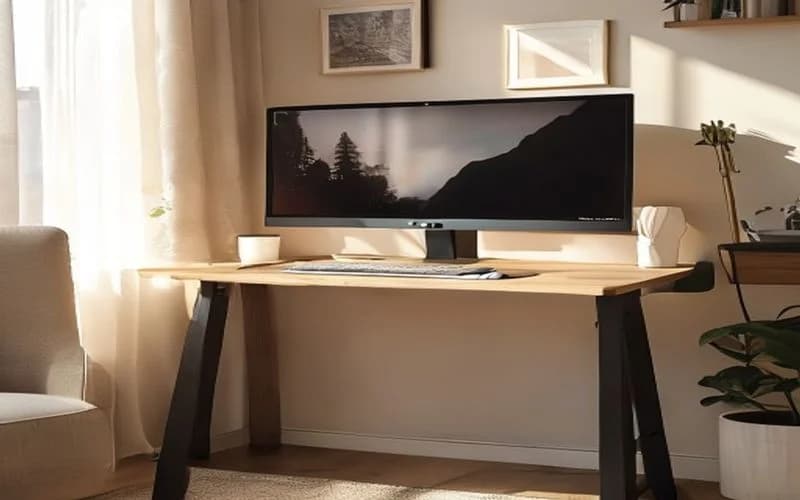
Standing Desk Monitor Height: The Perfect Position Guide
The top of your screen should sit at eye level, 20–26" from your face, tilted 10–20° back. Here's exactly how to set it up — for single, dual, and ultrawide monitors.
Giang Nguyen
Wood Manufacturing Expert
Why Monitor Height Matters More Than Your Chair
A 2020 study in the *International Journal of Industrial Ergonomics* tracked 312 office workers over 6 months and found that monitor position was the single strongest predictor of neck and shoulder pain — stronger than chair type, desk height, or keyboard position. Workers whose monitors were positioned incorrectly (too low, too high, or too close) were 2.4× more likely to report chronic neck pain than those with properly positioned screens.
When you switch between sitting and standing at a height-adjustable desk, your eye height changes by 12–18 inches depending on your height. If your monitor doesn't move with you, you're either looking down (neck flexion) while standing or looking up (neck extension) while sitting. Both cause cumulative strain.
This guide gives you exact measurements for every scenario.
The Golden Rules of Monitor Positioning
Rule 1: Top of Screen at Eye Level
The top bezel of your monitor should align with your natural eye height when you look straight ahead with a neutral neck (ears over shoulders). This positions the center of the screen approximately 15–20° below your natural line of sight, which matches the eyes' natural resting downward gaze angle.
How to measure: Stand in your working posture at your desk. Have someone mark the wall at your eye height with painter's tape. The top edge of your monitor bezel should be within 1 inch of that mark.
Common mistake: Many guides say "center of screen at eye level." This forces you to look *up* to see the top of the screen, which causes neck extension and upper trapezius strain. The top of the screen — not the center — goes at eye level.
Rule 2: Distance of 20–26 Inches
The optimal viewing distance depends on screen size:
| Monitor Size | Optimal Distance | Pixel Pitch Context |
|---|---|---|
| 24" (1080p) | 20–24" | Standard pixel pitch; closer is fine |
| 27" (1440p) | 24–28" | Higher resolution allows closer viewing |
| 27" (4K) | 20–26" | Very fine pitch; closer viewing comfortable |
| 32" (4K) | 26–32" | Larger panel needs more distance |
| 34" ultrawide | 24–30" | Width handled by eye movement, not head turning |
How to measure: Sit or stand at your desk in your working posture. Extend your arm straight forward. Your fingertips should touch the screen or come within 2–3 inches of it. If you can't reach it, the monitor is too far. If your palm presses flat against it, it's too close.
Rule 3: Tilt Back 10–20°
Tilting the monitor backward by 10–20° from vertical serves two purposes:
- Reduces glare from overhead lighting by angling the reflective surface away from ceiling fixtures
- Matches your natural downward gaze angle, reducing the need for neck flexion
Most monitor stands allow -5° to +25° of tilt. Set yours to approximately +15° (tilted backward). If you wear progressive/bifocal lenses, reduce the tilt to +5° to avoid looking through the wrong part of the lens.
Single Monitor Setup
For a single monitor, center it directly in front of you, aligned with your keyboard's G/H key split. Your nose should point at the center of the screen when you face it naturally.
Recommended monitor arms for single setups:
- Ergotron LX ($179) — supports up to 34" monitors and 25 lbs, with 13" of height adjustment. The gold standard.
- AmazonBasics Monitor Arm ($109) — rebranded Ergotron mechanism, identical performance at lower price.
- VIVO Single Arm ($39) — budget option with 15.5" height adjustment, supports up to 22 lbs.
A monitor arm is almost mandatory for standing desk users. Your desk's height changes, and a fixed-height monitor stand can't track that movement unless it's clamped to the desk surface and moves with it. See our [best monitor arms for standing desks](/guides/best-monitor-arms-standing-desks) for detailed testing.
Dual Monitor Setup
Dual monitors introduce a critical decision: symmetric or asymmetric placement?
Symmetric Placement (50/50 Use)
Place both monitors at equal angles, with their inner bezels meeting at your centerline. Each monitor angles inward 15–20°. Use this layout when you split attention equally between screens — e.g., code on the left, documentation on the right.
Problem: You never look straight ahead. Your neck is always rotated 10–15° to one side. Over a full workday, this can accumulate 400+ micro-rotations.
Asymmetric Placement (70/30 Use — Recommended)
Position your primary monitor directly in front of you, centered. Place the secondary monitor to one side, angled 30° inward. Use this layout when one screen is your primary workspace and the other is for reference, chat, or monitoring.
Why it's better: Your neck stays neutral 70% of the time. The secondary screen only requires occasional head turns.
Height matching: Both monitors should have their top bezels at the same height. If your monitors are different sizes (e.g., 27" primary + 24" secondary), raise the smaller one on a VESA arm until the top edges align. A height mismatch of even 2 inches causes unconscious neck tilting that accumulates over hours.
Dual Monitor Arm Recommendations
- Ergotron LX Dual ($329) — two independent arms on a single pole. Each arm holds up to 25 lbs with independent height, tilt, and rotation.
- VIVO Dual Arm ($39) — budget option that holds two monitors up to 22 lbs each. Less smooth movement but functional.
Ultrawide Monitor Setup
Ultrawides (34" and above) eliminate the dual-monitor bezel gap and simplify ergonomics. Position the monitor so its center is at your centerline, with the top bezel at eye level.
Curvature matters: A 1000R curve (like the Samsung Odyssey G9) wraps the screen edges closer to your peripheral vision, reducing the need for head turning. A 1500R or 1800R curve is gentler and better for productivity work where you want more uniform text distortion across the surface.
Distance adjustment: Because ultrawides are physically wider (32–47"), you may need to push the screen 2–4 inches farther back than you would a 27" panel to keep the edges within your comfortable visual field (approximately 60° horizontal).
Height Adjustment When Transitioning Sit ↔ Stand
Here's the key ergonomic challenge with standing desks: when you raise your desk 12 inches, your monitor also rises 12 inches — but your eyes only rise about 12–18 inches (depending on chair height and posture). If you use a monitor arm clamped to the desk, the monitor tracks perfectly because it moves with the surface.
If your monitor sits on a fixed shelf, riser, or wall mount, it stays at the same height when you raise the desk. This is ergonomically disastrous — you'll be looking down at the screen while standing.
Solutions:
- Desk-clamped monitor arm (best) — monitor moves with the desk automatically. See our [monitor arm guide](/guides/best-monitor-arms-standing-desks).
- Electric wall mount ($200–$500) — adjusts independently of the desk. Good for shared workspaces.
- Preset memory on your desk — save your sitting and standing heights and adjust the monitor arm manually each time. Adds 5–10 seconds per transition.
Laptop Users: You Need an External Setup
Laptop screens are ergonomic nightmares at standing desks. A 14" laptop screen placed on a desk surface at standing height forces you to look down 30–40° — far outside the safe 15–20° range. Options:
- Laptop stand + external keyboard/mouse — raises the laptop screen 6–10". Partially solves the angle problem but the small screen still encourages forward lean.
- External monitor + laptop as secondary — the external monitor at proper height handles 80% of your work. The laptop screen is for secondary tasks only.
- Closed laptop + external monitor + dock — the ergonomically optimal setup. Your laptop becomes a CPU only.
Quick-Reference Height Chart
Use this chart to set your monitor's top-of-bezel height based on your stature:
| Your Height | Standing Eye Height | Monitor Top Bezel | Desk Height |
|---|---|---|---|
| 5'2" | 57" | 57" ± 1" | 38–42" |
| 5'5" | 60" | 60" ± 1" | 40–44" |
| 5'8" | 63" | 63" ± 1" | 42–46" |
| 5'11" | 66" | 66" ± 1" | 44–48" |
| 6'2" | 69" | 69" ± 1" | 46–50" |
| 6'5" | 72" | 72" ± 1" | 48–52" |
*Eye height is approximate and varies with footwear and posture. Measure your own for precision.*
The 5-Minute Ergonomic Check
Run through this checklist every time you adjust your standing desk:
- ✅ Top of monitor at eye level (not center of screen)
- ✅ Screen 20–26" from eyes (arm's length)
- ✅ Monitor tilted back 10–20°
- ✅ No glare visible on screen surface
- ✅ Keyboard at elbow height (forearms parallel to floor)
- ✅ Feet flat on mat, weight evenly distributed
- ✅ Ears aligned over shoulders (no forward lean)
If any of these fail, adjust before starting work. Cumulative micro-strain over 2,000+ work hours per year is how desk injuries develop. Pair this monitor guide with our [sit-stand schedule](/guides/sit-stand-schedule-desk-workers) and an [anti-fatigue mat](/guides/best-anti-fatigue-mats-standing-desk) for a complete ergonomic standing desk setup.
Want to see our testing in action?
Browse our expert-tested standing desk reviews with real lab data.
Explore Reviews